Showing posts with label systems. Show all posts

Friday, 23 December 2016

Fitting Alignment Issue

What’s wrong with these fittings?
 
Weird alignment

weird again.


My fitting orientation is all wrong.  You will get this especially on zero dead leg valves for pharmaceutical products but I’ve seen this on other products.

If you create a plane between the 3 connection points of the valve you will see that it’s not parallel with the rest of the geometry, valve body in my case.

default orientation

The direction is given by the 3’rd connection perpendicular to the line between the first and second. I think this is to help out with inexperienced users, idiot proof really, helping out if you didn’t align your connections to the model but that's just for straight fittings like tees.

Now what? Am I supposed to measure the angle every time and change fitting orientation on a continuous loop? (rolling eyes).

In order to fix this you need to add another authoring point and make it a 4 point connection.

4 Connections on a 3 point fitting? Are you mad?

I thought we already established that and we’re here to have some fun and solve some problems.

 We will be creating the 3rd connection inline (same plane) and parallel with the fitting as spare, never to be used and instead the 4th connection is to be used.

It might help to make the 3rd on a different plane away from 4th like right on the origin line just so it’s out of the way when placing or connecting fittings to it. We want to make it very obvious from the snap preview that it’s not the one to be used.

authoring dialog window

I have also gave it a really small connection size; a size we would never use like 1/8” to differentiate it even more and keep people from connecting to it.

And this is what the difference between placing a 3 or 4 connection fitting looks like
 
compare the results.
I’ve given this example before on autodesk forum on a similar issue.

You can keep just 3 connections if you align the third but we can do better.

3 would do but 4 is better


I feel it’s best to have a 4’th connection but be careful on placing fittings.

Watch out for ghost connection when placing this fitting. 

Later,
ADS


Thursday, 1 December 2016

Custom Elbow, Self Draining Lines P1

Self draining lines?

I’ve used those quite a lot on this past year and it seems we will continue in the ones to come.


I have been contacted by one of you (my internet friends) and asked if I think it’s possible to create custom length elbows and use it with Tube and Pipe.

                Apparently his company has open a support case with Autodesk and after a thorough investigation they were told it’s not possible and to continue constraining the fittings, one after the other just as they do now.

                So he has resorted to the dark side and contacted a bogus blogger to see if he has a possible solution. Happy to say I do have a possible solution but it’s up to him to decide if he wants to go the TP way.

                The biggest challenge is to create an elbow with custom angle and where the user is prompted to specify a length for the entry, exit legs (straight section of the elbow).

                Most important phase in the design process is to get the user requirements right and I have failed that from the beginning but I’ll blame the language barrier and the different time zones.

                All the companies I know buy 90deg elbows and they bend them to required angle because it’s cheaper this way. My initial impression was that they use 90deg elbows as well but they cut the legs at an angle (slope angle) rather than bending the elbow.

                Some good info emerged out of this and that’s why I decided to mention it. So keep it in the back of your mind in case you ever need to do something similar.

                There are a couple of methods to cut the legs back but some will give you errors down the line.

                Do not control the leg lengths by editing the sweep path because when removing the leg altogether (max cut) you will get errors on generating other members with 0 length legs.

                Do not author the part by using the leg face because that will fail. I will fail when you cut the face to an angle (the face is not circular anymore) and it will fail if you remove the straight leg completely, (face not existing anymore).

                Instead create sketch points and work points for your authoring connection setup.


Authoring work features

                While the elbow is 90deg the connection needs to be picked up as different angle, that is a must for self draining lines or you will not be able to select the fitting in the TP Style Setup dialog window.


Authoring angle


TP style dialog
                For that you need to create custom work axes but that’s easy if you create some construction lines in the sweep sketch. Check out my blog on authoring empty parts here.

                Because I wanted the users to have a minimum, maximum allowable distance and a 1mm increment (keep it nice and tidy) I have setup custom cells for my ipart table and that was a big waste of time.

                Do not create custom range cells or columns in the ipart table; they have no effect once published to content center. Instead publish it as it stands and alter the content center family table.


don't waste time here

                Now that we got that out of the way I will show you what my friend really wanted and how to create a proper custom length elbow to be used for tube and pipe self draining lines but that in the next blog.

                PS: I am doing a video for this as well…… more than a year since I’ve done a video !!!!

Here is the test elbow (the wrong one) in case you are looking for inspiration or just want to test it out.

Later,
ADS


photo credit: Hernan PiƱera Seated (license)

Monday, 7 March 2016

Removing phantom fittings

                Although similar with last post I need to share some tips on how to populate a corrupted route again. Last post we discussed how to delete fittings and today we are using the info there to remove fittings and segments that don’t update. 


                This is a scenario that I see a lot and it refers to broken links and updates on the fittings. You modify a route and when you try and update the run you realize that some / all fittings don’t update position and sometimes Inventor creates a complete new set of pipes and fittings ignoring the existing ones.

                I don’t have a case at hand but I will share the one on Autodesk Forum I have been answering and which can be seen here.


                As you can see from the images, Inventor decided to keep some segments in place when the route has been changed.

                A different case would be when you need to remove the populated fittings and segments from a route like in this post here.
               
                Just like in my previous post you need to move the fittings and segments outside T&P assembly (promote) and then demote them to a new assembly which can then be deleted.

                The problem is, once you move those fittings you can’t populate the route again. We are technically hiding the elements outside TP and then we delete them so the route has no clue that the parts have been deleted.

                If you do need to populate it again then I have a trick and this is the reason we are here today.

                The route can’t be populated again but you can copy/paste it and then make it adaptive and this will replicate your exact route. Because you are doing this at the route level (instead of run level) you will get the default fittings and not any manually placed ones (valves, reducers, etc.) but nonetheless it is far better than sketching the route again.

                Inventor will NOT place the route in the original location and you will see it at a distance adjacent to the corrupted one.  As a rule any new files will be created at assembly origin and that means that any route will be located at the run origin but without constraints. You can always check the position of the original one by checking the iproperties/occurrences tab.

                You have two options to move the route to a new location:

1                1 - You have not used the Make Adaptive command yet. Once you paste the route you can then right click on it and in the iproperties / Occurrences tab you can enter 0 in the “Current Offset from Parent Assembly Origin” and then click apply. Then you can use the Make Adaptive command.

Position route at origin.
Make Adaptive menu.

                2 - If you have use the Make Adaptive and even used the Populate Route command you can repeat the steps before but in the Occurrences tab take of Adaptive first and then put 0 in the offset value fields. As soon as you click apply, the Adaptive box should be ticked automatically for you if not make sure to put it back. You can't just change the position of an adaptive route or you will get this error:
"
                "Properties: problems encountered while executing this command
                Invalid input for Request"


Take off Adaptivity first.

Limitations:

-          You still need to connect the route to your equipment around.
-          Sometimes, if the location of fittings and segments don’t update you need to edit the route and simply click on “Finish Route” to force an update. Update button or rebuild all will not help you.

Force update the fittings and segments.
Small animation of the process.

This trick is part of the “How to constrain my TP assembly and its components” blog which will come at a later time. Way too many to handle at once.

Latter,
ADS.


photo credit: fittings (license)

Wednesday, 3 February 2016

Tube and Pipe Units

Question: How do we change TP units? And how Inventor decides which units to use for new runs and routes?               
Spaghetti pipe measuring
I have been investigating this a while back and didn’t have time to search deeply but I get this question a lot so I decided to test and find the answer once and for all.

                It is quite logic as you will see.

                Any already created documents need to be manually changed by editing that document using the Tools / Document Settings / Units tab / Length drop-down field. What do I mean by documents? “Tube and Pipe Runs” assembly, any “Run”, any “Route” and it goes the same for hoses.

Change model units.
                I think you will only edit the routes really and one thing to understand is that the dimensions will be displayed in the route units, but when you edit that dimension you will have the original value + original units you entered. For example you created a route with a segment length of 1500mm and then you change the units to inches, then the dimension will report 59.055 but when you edit the dimension you will see 1500mm(mind the explicit units). In other words any existing values will be kept and interpreted (converted) while any new dimensions, parameters, will get new units. You can change units for existing parameters but I wouldn't bother.

Dimension units vs reported units.
Any new files you create will get the units of the parent document. For example if your files were created in mm and you suddenly decide the new Runs or Routes to be inches then you need to first edit its parent document.

If you need to create all New Routes in inches then you first need to edit the parent Run and set it to inches.

If you need to create all New Runs in inches then you first need to change the “Tube and Pipe Runs” document to inches.

HOWEVER any generated pipe segments will have the units set as per CC (Content Center) family settings. Using ASME pipes will get you inch lengths of pipes while using DIN, ISO, etc. styles will generate metric lengths. No matter what units you have in the T&P assembly, Run or Route the pipes will use the CC family units.

Pipe units in parts list.
BOM and drawing Parts List will get units from the pipe segments so if you have mixed styles (metric, imperial) then you will get mixed units.

To emphasize this you can add a “BASE UNIT” column on the parts list which should help spotting different units.

Emphasize units in Parts List.
Using Material Lists with cumulated lengths is safe since you are probably merging the parts by stock number or part number and these will have same “unit” type.

"One Unit to rule them all, .... and in the darkness bind them" ?

If you need to unify the reported length you can change formatting for QTY column in the parts list and force one unit for all. 

Right click the quantity column and choose Format Column. Tick the Apply Units Formatting box and on the Units drop-down select the common units to be used, then click OK in the Format Column window.
Formating lengths to a common unit.
Back to the assembly environment, you can either open the documents or edit them in the current assembly. Some documents are tricky to open like Routes which can only be open either using the open command and browse for it on disk, or by selecting it in the browser or graphical window and then use “right click on graphical window” and choose “open”. It’s the only way to open a route as a separate document.

The only way to open routes.
                TIP: Here’s how to save documents if the main assembly is open. If the main assembly is open and you decide to open a run, route, separately then you need to do the changes in the open document but save the main assembly. Some files can only be saved in the context of the main assembly.

Later,
ADS

photo credit: Measured (license)

Thursday, 28 January 2016

Publishing Dumb Parts

This is last part of the series, covering how to publish dumb parts to Content Center. Now you know where to get parts on the internet, how to create work features, and how to author empty parts. This is all neded info before we take the final step.

                Quite simply publishing dumb parts as a family in content center is based on the ability to create iparts with suppressed bodies (will expand later).
Downloaded parts can stay dumb, we'll make them smart.
                As you probably know if you follow this blog when I download parts from the internet I don’t publish them to content center but I keep them in a library folder and the document properties are saved in a text file. When I need to place a certain valve I copy the file path from the text document, and I paste it in the place fitting dialog window to speed up my navigation time. Content center seems slow as it is and I don't want to overload it with individual parts.

                While placing from disk is faster than placing from content center (it is for me) there is another limitation that we can’t overcome. Insert fittings only seems to work with content center items, parametric or dumb all the same. If you don’t know what I just said I suggest you get familiar with my blog on inserting fittings here.

Placing fittings will insert nodes on the route which breaks constraints and remove dimensions. A better way would be to place the main fitting say a valve and insert the rest of the fittings before and after, like reducers, unions, etc. This way you only need to control the position of one node on the route and the sketch remains fully constrained. Insert fittings only works with content center items and to overcome this you would first need to place a CC item and then drop your library item (located on disk) over that CC item. These are way to many steps, so for this we will publish them to CC as a family.

I am going to use a Georg Fischer valve set as an example.
TIP: You can download the whole Georg Fischer cad files as zipped packages split by material type, ABS, PVC-U, PVDF, etc.

Georg Fischer metering valve as example.
I needed a metering Valve so, to replicate my case,  after locating the stp files start a new assembly in Inventor. Drag the step files inside the graphical window of the new assembly. If the files are computer generated then the origin will match for every single one of them even though when they are dropped in the assembly they will be automatically positioned at certain distance from one another. You need to position them on a common origin, and even better to the origin of the assembly. Use the Assemble tab, Productivity pane, Ground and Root Component command to fix them at the origin really quick. As you can see in the screenshot I have GR as my speed key and that helps a lot.

TIP: The files will be imported as per the last Options you chose for this particular foreign file extension. If they are being imported as composite surfaces rather than parts with bodies read down towards the end how to change the import options.
 
Use Ground and Root Component to fix them at origin.
This is a perfect example because with 2 models we are going to cover 4 members in content center. Because the models are the same there is no point getting all 4 stp files and only 2 will do. The other 2 models are identical having different part number due to different gasket materials.

If the models had a common origin you should see them overlapping just like on my section in the image bellow. If not you will have to constrain them to a common origin, and then to the assembly origin.
Locate imports on a common assembly origin.
The next step is to get this assembly as a single multi-body part because for now it’s only parts that can be authored as T&P and parts only that can be published to CC. Derive and Shwrinkwrap didn’t worked in all my tests because the bodies were not coming in as suppressible features. Save the assembly as “stp” because “sat” for all my tests looses the color of the bodies and I don’t want to fix appearances as well. Click open and browse to the new stp. location.  You might need to change the file extension filter to Step or Any (*) and select your file. Click Options next to Open and then make sure you choose Solids, Assembly as Single Part and Multiple Solid Part. This will allow you to suppress the bodies unlike doing a shrinkwrap or derive.
Shrinkwrap or Derive didn't worked for me.
Use the Options button before Opening the document.
TIP: If you don't get solid bodies on your imports you can play with stitch, sculpt, combine, and get solids out of surface bodies, but we do need bodies for the suppress command.
In the part environment use Parameters and add two parameters, z and L (my case) which will be your connection distance and engagement distance. For butt weld you don’t need an engagement distance. Just like in authoring empty parts we will create work points for our connection reference using work planes located at L/2 on each side and the inline origin axis. As you can see the catalog has no dimensions for z but I have measured the models and added the value to the table.
Missing dimensions can be measured on imported models.

Create connection points using parameters.
Before you click the create ipart button I suggest you rename the bodies in the browser because they will be hard to identify on the ipart table. Here’s my example, and remember that a single body will serve 2 family members. If you don’t do this, in the ipart table you will see “body1”, “body2”, etc. which is hard to locate.
Rename bodies to make easier to identify in the ipart table.
Once finished adding the ipart table info test the model by switching between ipart members and see if the model updates. I have an excel spreadsheet as template for Georg Fischer families and once I’ve clicked on create ipart, I close the table without edits and I open it in excel where it's easier to paste the data from my template which covers, material, description, DN, part number, etc.. and even cost and stock info.
Test your model by switching between components.
Author the ipart as Tube and Pipe component using the connection points created and the “To Plane / Point” option choosing the engagement planes.
Author and publish your part to Content Center
Once you publish this to Content Center you have access to Change Size command but most important the Insert Fitting command.
Insert Fitting is working for CC items.

Keep in mind that adding all these bodies will increase the size of the file a lot and for simple parts you are better off to model it rather than adding them as suppressed bodies which can be a bit of overkill.

Hope you are still with me; I will do a video for this might seem too much to some of you.

For your convenience I have attached the files in a zip document so grab it here and start playing with it.

How do you like my next car?

Later,
ADS.

                
photo credit: stay dumb! glue pinella & DSCF2330 (license)

Monday, 25 January 2016

Authoring empty parts

                This was really scheduled to go out on Friday but I was just given a major-major project with strict deadlines and huge penalties on our side for any delay so I had to put in the extra hours and effort to get it moving. I hope I haven’t ruined your weekend by giving you nothing to read on your Sunday coffee or whenever it is that you catch up with the past week news, blogs, forums and CAD news altogether. Helps to start work with a bit of laugh and irony.

Part two on publishing dumb parts is all about authoring empty parts. A lot of the times you don’t have the final model because it’s a complicated part to model, you don’t have enough time or information, you are waiting for a different department to model and certify the part. So meanwhile you do as best you can to overcome this, constraining and moving components around to account for the missing elements.
Empty on all sides

                You might take it a step forward and create a similar shape body or surface outline to guide you as of what the occupied volume is so you can avoid any clashes and interferences when the final model will come in place. This applies to everything from valves to skids and other equipment like heat exchangers for which a model doesn’t exist and it’s in the process of being finalized.

When I am dealing with this type of situations I usually create an empty part, author it as Tube and Pipe to serve me in my routing and drop the final model when ready over it with place fitting command.

TIP: The he assembly replace command will not work and you need to use place fitting instead. With the place fitting command you can drop any T&P authored part on top of a different one to create a replace.

                In my last post here, I’ve shown you how to better/faster create work features and if you haven’t seen it go check it out and then quickly come back because we are going to use that same techniques here.

                In order to author a T&P fitting you need a work point for the connection and an axis for the direction of the engagement. You might need another plane to setup the engagement distance but that depends on the type of connection.
               
                You probably did these points instinctually when authoring T&P fittings although you don’t need to. On an empty part you can’t do without work features but on a model with circular edges you don’t need any work features at all; will have to detail this at a different time.

                If you can’t use the origin planes and axes then you need to create your custom work features and I recommend that you rename then work features in the browser to help you find them on later edits.

TIP: If the directional axis matches one of the origin axis then you don’t need to create them AT ALL. The directional axis doesn’t need to be in line (coincident) with the work point and here’s to prove that:

Add caption


I know there’s nothing fancy here but a lot of people are unaware that you can author empty parts and it’s really the foundation for authoring dumb parts as we will discuss next time.

Later,
ADS


Tuesday, 1 December 2015

Aligning Weird Angle Fittings

Sometimes, if you work out Tube and Pipe long enough you will have this problem where fittings are shown at weird angles misaligned with the run. Even if you haven’t encountered this you will at some point so do yourself a favour and read ahead on how to solve it. It is very rare when this happens and starting over your T&P layout again is always an option but you don’t have to because there’s a quick fix.

Aligned fittings

You haven’t done anything different than the usual, but when you place a fitting it comes up at a weird angle and if you try the Change Fitting Orientation command, Inventor will report “0.00” angle and so you don’t know by how much to rotate it to get it to line up with the rest of the run again.

Angles do puzzle me some times but this should be straightforward.

TIP:  The reported angle depends on the type of elbows specified in the route style, how much you drag the rotation arrows or your manually entered angle value. Nonetheless if you get a weird angle and don’t know how to align it then keep reading for a solution.

At this point you might be thinking to use the Change Fitting Orientation command and right away activate Rotation Snap on the right click menu. You will then think of dragging the arrows until they snap to adjacent geometry. Good luck with that! The randomness of getting that command to work has drove me crazy too many times.

You can also measure the angle with All Digits precision active but an almost right value is never the right value.

When I get this problem I unground the component, constrain it, ground it back and then I delete the constraints. Kind of crazy but read ahead why.

 Once you enter Tube and Pipe environment you will get customized menus, layouts and browsers so you the usual commands are not always there and for a reason I might add. While these commands are working you might brake T&P functionality and end up with unadaptive routes or even worse, crashes or corrupted files; none are fun to deal with so keep to the manual or standard procedures as much possible.

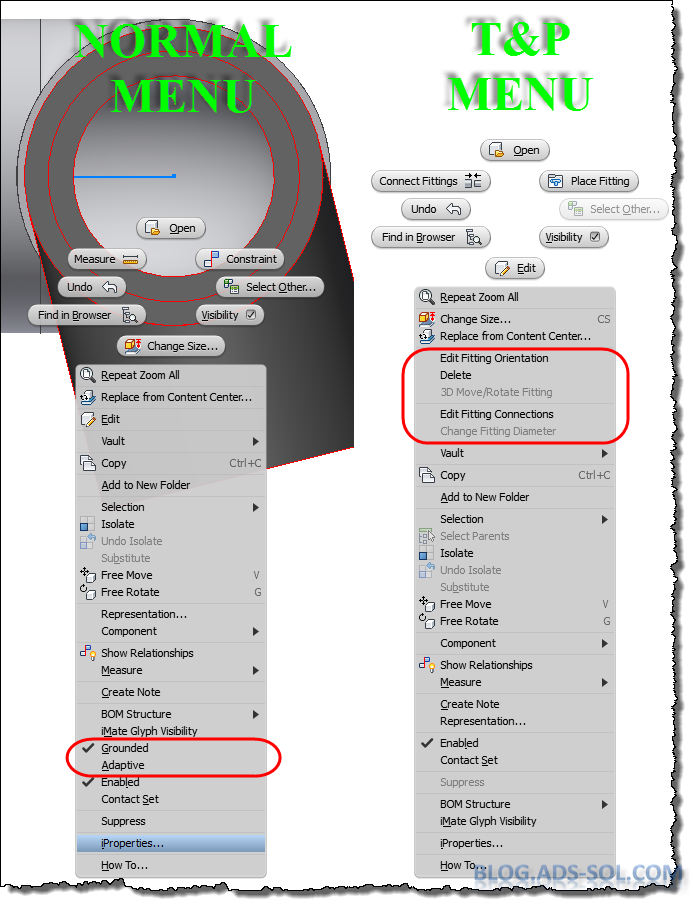
One of the missing commands is Grounded status on the right click menu, graphical window or browser. There is a reason for that, and we shouldn’t mess about with it but sometimes we have to and as long as you remember to tick it back on then we are ok.

T&P has custom menus, UI layouts and browsers.

Right click the part in the browser or graphical window, choose Occurrence tab and tick off Grounded then click OK.

Ground option is only available on iproperties.
Now you can constraint you fitting however you want it. I usually use the origin planes of the fitting and of the pipe or element right next to it.

Constrain the fitting to fix the orientation

Use the part iproperties to put the Grounded option back on and then click OK. Unfortunately there is no shortcut option to ground components but this is not that time consuming.

Delete the constraints you just created but notice that the part stays put because of the ground status.

And that’s how to align a weird angle fitting.

Later,
ADS.


Friday, 20 November 2015

Defer Tube and Pipe Updates

I can understand why some of you might find this post boring and hard to read so I have sprinkled it with images from London Underground, mainly Tube Line Service Update and to be honest the first one matches my feeling and situation exactly.

My feeling exactly when Inventor T&P failed to update
                Being self taught is good and bad, and while I find solutions to my problems faster I do tend to be a know-it-all type of jerk that doesn’t take other people’s ideas and remarks easily.

                But what good is all this knowledge and skill if I don’t share the findings? On this premises today I will share a problem I had the other day and the solution I found for fixing this.

                On one of my large plant layouts I had to activate “Defer all Tube & Pipe Updates” so I can do changes to the equipment, foundation and the rest of the plant. Changing a single constraint can take forever on large assemblies especially if that implies updates to tube and pipe. On this particular job I had about 24 runs with multiple routes and even on decent CAD Workstation it can seem forever.

                So I’ve disabled updates on Tue and Pipe and I have started churning away on all the changes imposed by the client. Couple of days later when I finished I have decided it’s time to update some of the pipe routes. I usually work my way one route at a time, fixing connections, dimensions, and adding/removing elements. When I am happy with the results I turn to the next one but before I could even start I have hit a brick wall and couldn’t pass over it.


                I can’t seem to be able to turn off “Defer all Tube & Pipe Updates”. I right click the TP assembly node and choose “Tube & Pipe Settings”, tick off the option, click OK and ... nothing happens. No change of icons, they still are red lightning bolt, and the “Defer all Tube & Pipe Updates” is still marked on the T&P. First thought was to make a new TP asm and recreate the structure of all the Runs which will take a while because they are only 24 if you recall so I wasn’t really keen to do that.

It's like the Matrix deja-vu; keep ticking off and it's not working.


                First thing I tried was to open the T&P asm on a separate window and suppress all the runs, and for that I had to create a new Level Of Detail (LOD). Switched back to my original assembly and tried to change T&P representation to my new LOD and nothing happen. Stuck again I have decided to suppress the Runs from the main assembly, and now turning off “Defer all Tube & Pipe Updates” was working. Feeling that I am getting closer I tried to unsuppressed the RUNS and while they showed up they still had the red lightning bolt icon on them meaning that they might not update and cause problems down the road. I bet this is not just a glitch on the icon and I will have update problems in the future.

LOD not working either.

                I have turned back defer updates and suppressed the runs, then I started to un-supress them one at a time and to turn back on defer updates afterwards so I can track if there’s a specific run or set of runs that cause the problem.
                And I was right! One particular run once unsuppressed it didn’t allowed me to change T&P defer update settings. Using the same procedure I have narrow it down to a single route that was being my pain. Even though the route is displayed in red in the browser, which usually means there are some issues with it (not violations), I can’t seem to find what’s wrong with it. It is simple enough to be bulletproof; 8 lines fully constrained, and yet it’s acting weird.
Source of my problem.
Can't see what's wrong with it.
                Hope you never get the headache I have from T&P and hope you learned something new to try before starting over from scratch. A different solution might be to recreate the Tube and Pipe assembly altogether; just the T&P assembly though, not the routes and all that work, but I will be talking about that on a separate post.

Will end with Quote of the Day:


            Later,
ADS