Sometimes, if
you work out Tube and Pipe long enough you will have this problem where
fittings are shown at weird angles misaligned with the run. Even if you
haven’t encountered this you will at some point so do yourself a favour and
read ahead on how to solve it. It is very rare when this happens and starting
over your T&P layout again is always an option but you don’t have to
because there’s a quick fix.
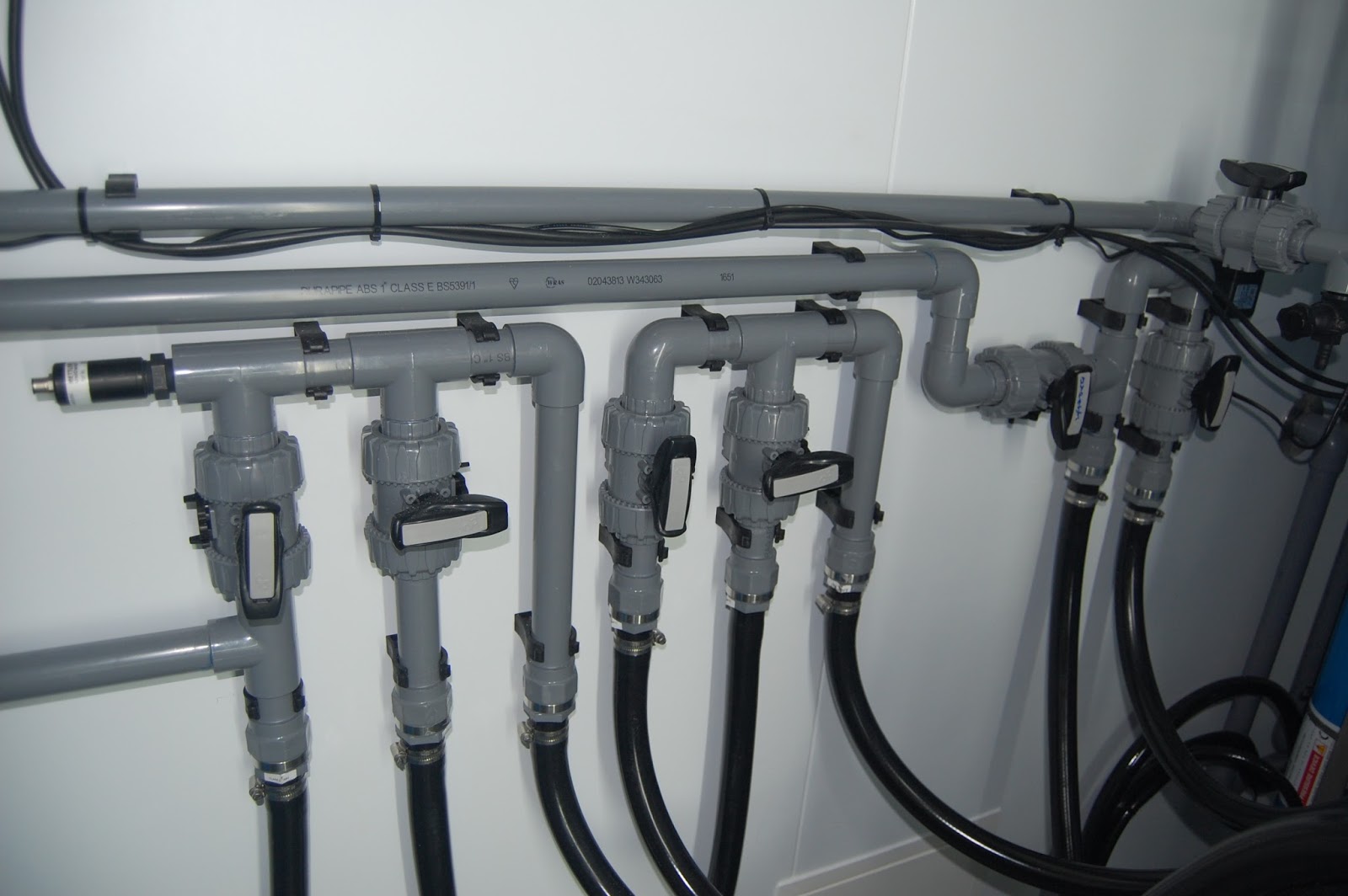 |
| Aligned fittings |
You haven’t done
anything different than the usual, but when you place a fitting it comes up at
a weird angle and if you try the Change Fitting Orientation command, Inventor
will report “0.00” angle and so you don’t know by how much to rotate it to get
it to line up with the rest of the run again.
 |
| Angles do puzzle me some times but this should be straightforward. |
TIP: The
reported angle depends on the type of elbows specified in the route style, how
much you drag the rotation arrows or your manually entered angle value.
Nonetheless if you get a weird angle and don’t know how to align it then keep
reading for a solution.
At this point
you might be thinking to use the Change Fitting Orientation command and right
away activate Rotation Snap on the right click menu. You will then think of
dragging the arrows until they snap to adjacent geometry. Good luck with that!
The randomness of getting that command to work has drove me crazy too many
times.
You can also
measure the angle with All Digits precision active but an almost right value is
never the right value.
When I get this
problem I unground the component, constrain it, ground it back and then I
delete the constraints. Kind of crazy but read ahead why.
Once you enter Tube and Pipe environment you will get customized
menus, layouts and browsers so you the usual commands are not always there and
for a reason I might add. While these commands are working you might brake
T&P functionality and end up with unadaptive routes or even worse, crashes
or corrupted files; none are fun to deal with so keep to the manual or standard
procedures as much possible.
One of the
missing commands is Grounded status on the right click menu, graphical window
or browser. There is a reason for that, and we shouldn’t mess about with it but
sometimes we have to and as long as you remember to tick it back on then we are
ok.
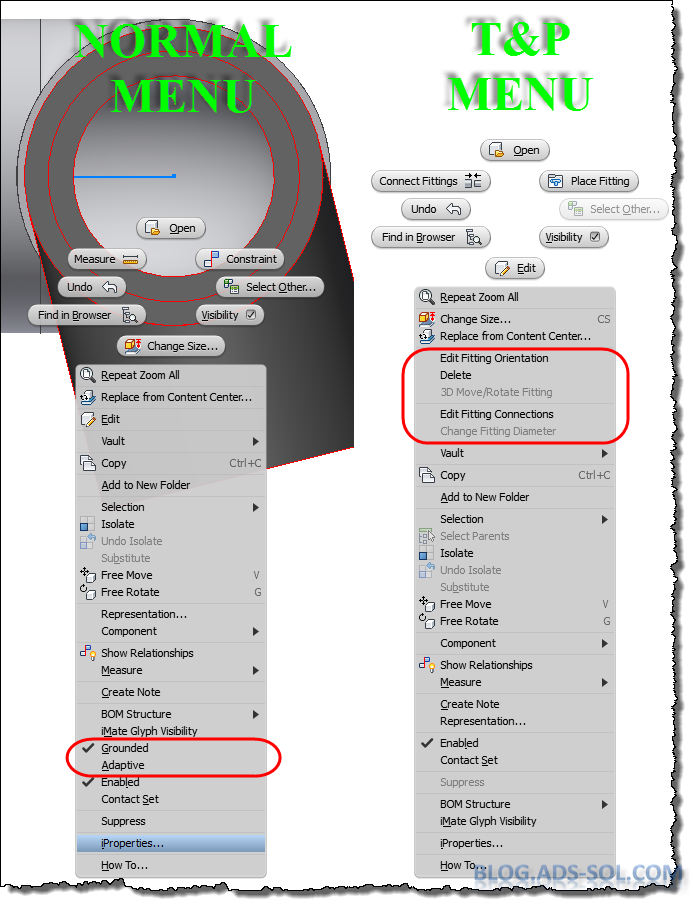 |
| T&P has custom menus, UI layouts and browsers. |
Right click the
part in the browser or graphical window, choose Occurrence tab and tick off
Grounded then click OK.
 |
| Ground option is only available on iproperties. |
Now you can
constraint you fitting however you want it. I usually use the origin planes of
the fitting and of the pipe or element right next to it.
 |
| Constrain the fitting to fix the orientation |
Use the part
iproperties to put the Grounded option back on and then click OK. Unfortunately
there is no shortcut option to ground components but this is not that time
consuming.
Delete the
constraints you just created but notice that the part stays put because of the
ground status.
And that’s how
to align a weird angle fitting.
Later,
ADS.


