Showing posts with label move. Show all posts

Thursday, 10 March 2016

Precise Move Components

Is there a way to select components in an assembly and move them all an exact relative distance?

Sometimes we just need to move a group of components in a certain direction all at once and if they are constrained together then it is just a matter of editing the constraint value but what if they are not constrained one to another or what if the parts are not constrained at all.

Some of foreign models we receive are translated as assemblies with parts but as you know those are not constrained but rather placed together and they are free to move around.

If the whole imported assembly needs moving that’s easy, right? Just constrain it and then edit the dimension value but what if you need to reposition some of the parts inside the assembly?

My blogs seem to be related to one another and while this is not entirely intentional I think you will remember them better, just like in school when we were told the same thing over again till we got it.

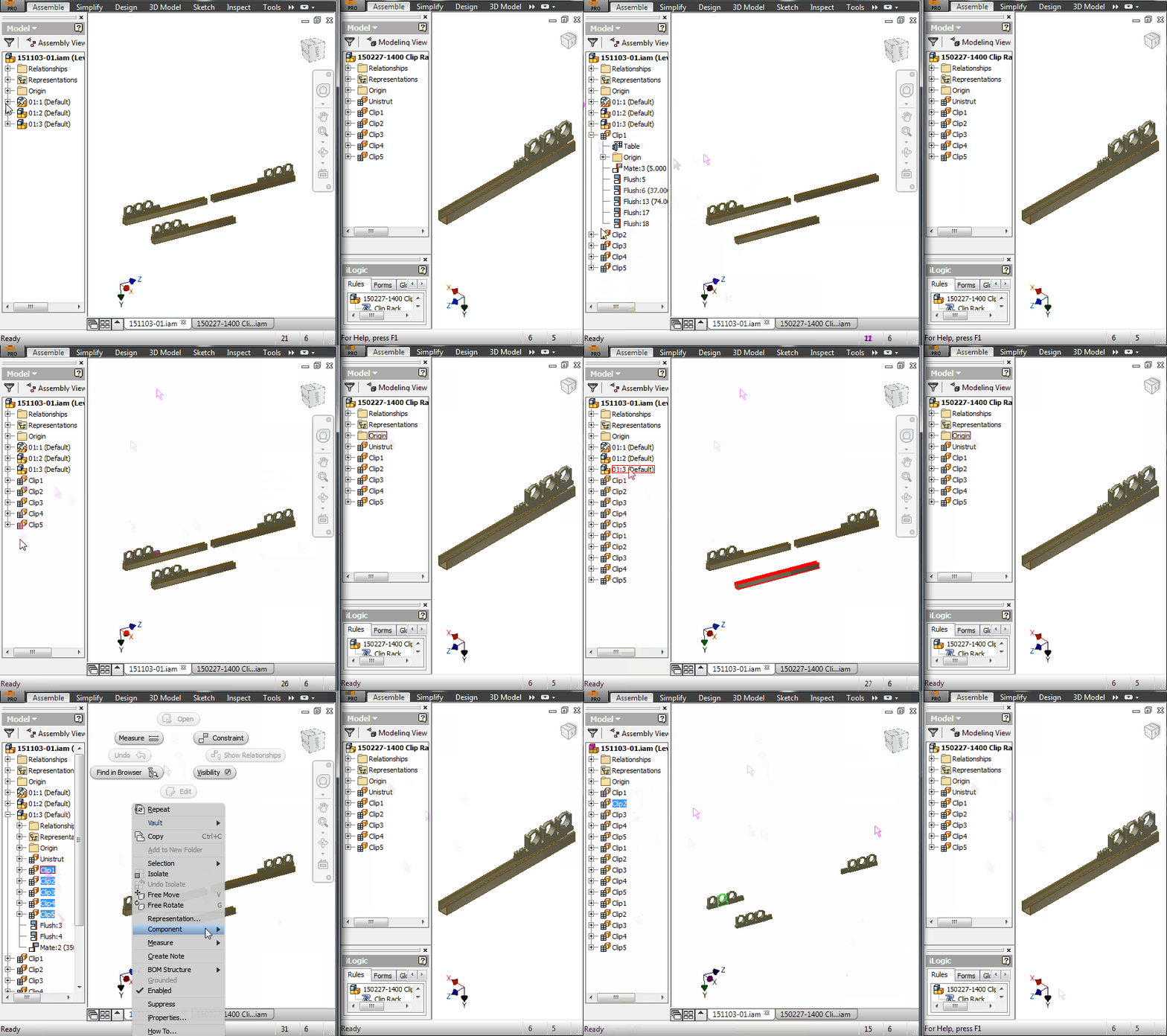
The way to move several components (parts/assemblies) at once is to demote them to a temporary assembly, move/constrain them, and then promote them again. Because constraints work with faces, axes, planes, they will follow the members (parts/assemblies) no matter how you move them in the tree structure, in other words Promote/Demote will not mess up the constraints.

For example, say you have 4 chairs constrained to the floor and you need to move them together an exact, relative distance. When you demote the chairs the assembly containing them will have 4 constraints to the floor and after you move the assembly around and you promote the chairs you will see that each is constrained to the floor.

If the components need to move along the origin axis then you are better/faster to edit the value in the iproperties / Occurrence tab / “Current Offset from Parent Assembly Origin”.

Select your components you choose to move and press TAB key or use right click Component / Demote command. Don’t worry about giving a proper name or save location, we will never save this assembly on disk. It will stay in memory just till we finish with moving.

Demote components

TIP: In browser you can use SHIFT, CTRL select but in the graphical window you can use window selection.

Click OK in the Create In-Place Component window and then right click the newly created assembly and choose iproperties.

Precise move.

Head over to Occurrences tab and change the value in the X,Y,Z direction as you need.

You can use the origin indicator to help with choosing dimension. Remember that a negative value will move it against the axis direction (check the arrow indication) while a positive value will move in the direction of the axis.

Find the assembly in the browser and promote all of it’s components back again. You will notice that they have kept the new position.

Promote components

Delete the temporary assembly and choose No in the save dialog window.

Delete temp assembly.

It might not be that often that you will use it but it’s good info to have when dealing with large imports.

Short animation.

Later,
ADS


photo credit: mic (license)

Tuesday, 3 November 2015

Restructure


Organizing and restructuring is daily job and you need proper tools for that. When I need to move components around there is no better tool than promote and demote.

Restructuring can be tedious and time consuming.
While these commands have nothing new in themselves and you probably use them all the time I would like to share some tricks and tips with promote / demote. The Demote/Promote helps restructure the assembly and you can use the shortkeys Shift+Tab (Promote) and Tab (Demote) or choose them in the right-click menu Component submenu.

Promote/Demote
                As I’ve mentioned before promote/demote is useful in T&P when you have fittings that can’t be deleted and you’re stuck with parts that don’t belong there anymore. You can try and use the DELETE key on your keyboard because sometimes that works, even though there’s no Delete on the right-click contextual menu when you select those fittings.
                At this point you either drag those fittings (multi-select works as well) to a higher level outside T&P where they can be deleted or you demote them to a subassembly that can be deleted afterwards.
                A different trick and different approach that I like to use when doing quick layouts for sale quotes would be to promote existing designs. Consider the following scenario:
I have a plant layout that looks similar to what the new client wants but he has supplied drawing for the plant room so I can’t just save the existing project with a new name. I create the room using the drawing provided by the client and then I place the existing layout that I don’t want/need to change using just a regular place command.
I then select all the components inside the existing project and I promote them to a higher level. The good thing about this technique is that the components will maintain position and even better they will maintain any constraints in between them. This saves time when under pressure and it helps me get quotes out in minutes; these are potential jobs anyway so why waste time on things that might not turn out to be of value.
As soon as you’ve promoted the components you can then delete the original assembly BUT in the dialog window choose not to save it otherwise the assembly will lose its components (promoted).
A different case would be when you have a subassembly more than once in the model and you need to promote its components. As soon as you promote one set of children they will disappear from the other subassembly. There are several ways of promoting the rest of the children up:
1 - If you use Vault or the subassembly is a library or read-only file then this will not work so get to the next point to see a solution. In all the other cases you can open the subassembly in a new inventor session and all you need to do is hit the Save button then head back to the first Inventor session and in the Inventor menu (big I top left) choose Manage and then click on Refresh. Inventor will complain that the subassembly has been updated outside the current session and prompt you if you want to save the current changes at which point you say NO. You can no promote another set of children and use Save on the outside session then Refresh it the current session.
Here’s a small animation.

use Refresh to update changes done outside the current session.
2 - If the subassembly is vaulted, or library read-only then the solution is much easier but takes longer to do. Because we can’t save the file in an outside Inventor session we can’t use the refresh command. The command will work but will not see any updates on the file. As soon as you’ve promoted the first set of children you can then close the assembly but in the save dialog choose NO on the subassembly which should be read-only anyway. As a side note when you use promote Inventor might ask you to check-out the subassembly from vault so you can choose NO in there as well. Now open the assembly again and you will see the subassembly in its original form and you can no promote another set of children.
TIP: If it’s a large assembly you are dealing with, opening and closing it all the time might not be efficient but you can save a copy of the subassembly in a read-write location and use the solution presented at point 1.
Here’s a video of the second solution. I am having a really small assembly but on large files this will not be an efficient solution.

close without saving will reload complete asm.
It is not complicated and I urge you to give it a try. Imagine how much time you will be saving in fixing constraints and dragging components to a similar position. 

Organizing can be easy with proper tools.

Later,
ADS


photo credit: <a href="http://www.flickr.com/photos/12897738@N00/144315128">Metrics</a> via <a href="http://photopin.com">photopin</a> <a href="https://creativecommons.org/licenses/by-nc-sa/2.0/">(license)</a>

photo credit: <a href="http://www.flickr.com/photos/99357189@N00/98009491">wrenched</a> via <a href="http://photopin.com">photopin</a> <a href="https://creativecommons.org/licenses/by-nc-sa/2.0/">(license)</a>

Thursday, 2 April 2015

AutoCAD MOCORO command


Are you using MOCORO command in AutoCAD?
I love it and use it all the time for speeding up my P&I D’s! Sitting nicely under the productivity tab it combines Move, Copy, Rotate, and Scale into one super command.


I just type MOC and the let the auto complete do the rest and finish with spacebar, enter or right click depending on your settings.
After you select the things to modify, you need to specify base point and then you can start placing it. Right click after each place if you need to modify the last item and you can either select with the mouse on the drop down menu or type c for copy, m for move, u for undo, etc.

And the video

Later,
ADS.