Let me drop a couple of words on getting flat patters from imported components. I've seen a lot of imported parts lately created in other cad packages (Catia in this case) with punches that Inventor has problem creating flat pattern for.
The secret here is to use delete face with heal on and delete the inside of the punch first and only afterwards the outside faces of the punch in a separate delete operation. You can select inside faces of all punches for your first delete face operation.
If your vendor exported an assembly with one part, Inventor will imported it as multi-body part with one body and it will complain that it can't be converted to sheet metal.
In this case you can export it again to a neutral file format and import that back or you can use derive to get it all as one body.
When you try and convert to sheet metal you will see that inventor complains about having multiple bodies so we need to derive it into a single body.
1. Open a new part.
2. Go to 3d model / create/ derive and browse to our file : 141017 Sheet metal imports.ipt
3. In the derived part dialog, expand solid bodies, and unmark Body.1 (you only need to have Body.13)
4. On the derived style select single solid body and click ok.
Even though we have only one body it seems that the round inserts at the end of the arms are modeled in so we need to remove them to a constant thickness part.
5. Extrude-cut the sheet metal nuts (round inserts)
6. Select the inside faces of the punches, one at a time or all at once. Start the delete face operation and after marking heal option click ok. You should have something as in the images bellow.
7. Repeat the operation again for the outside faces of the punches. The end result should be like this:
8. Verify the thickness and change it accordingly in the sheet metal options.
9. Use flat pattern. You might need to select one face (inside face) before flat patterning if it doesn't unfold. You might also need to delete the existing flat pattern if any to get it to compute.
Today I'll show you my way of showing part info on dxf exported drawings. Every once in a while we do dxf profiles of flat pattern sheet metal parts and we need to add more info to each export. We don't always have time to do a drawing for each part but we add views of flat pattern parts on the main assembly layout (or in separate sheets) so we need the extra info on the views for the manufacturer.
We normally have: Part number, Material, Quantity, and Thickness as a note linked to each flat pattern view.
Here's how we do it:
1. First you need to expose the Thickness parameter of the model so go in functions (part environment) and mark "Export" box on Thickness. I would suggest you do this on the sheet metal template and maybe part template as well (in case you use the convert to sheet metal option).
This will add the thickness in custom iproperties of the part.
2. Create a drawing and add a view of a sheet metal part.
3. Add a custom symbol and in the sketch start a text with the following values:
Part Number: <PART NUMBER> link this to the model properties.
Material: <MATERIAL> link this to the model properties.
Finish the symbol creation for now.
4. Add custom part iproperties PJ_QTY :
4.(a) manually in the part properties
4.(b) In the BOM of the assembly. Open the BOM inside the main assembly (main project assembly) and go to parts only (you might need to enable it first). Click on add custom iproperties, type Thickness and type PJ_QTY (or whatever your want to call the part quantity). Add "Item Quantity" and have it next to PJ_QTY. Select the values on the Item Quantity and drag the lower corner of the last cell towards the PJ_QTY row just like in Excel. The PJ_QTY part properties gets created on all parts with the value from Item Quantity on it.
5. Go back to the drawing and place your symbol on an edge of your sheet metal part just like you would do with a balloon.
6. Edit the symbol, and the text in it. Because we linked it to a part with custom iproperties they are available to be referenced. Let's add the following text:
Quantity: <PJ_QTY> link this to the custom properties of the model.
Thickness: <THICKNESS> link it to the custom properties of the model as well.
7. Finish the symbol editing.
Now you can copy/insert it on any view, on any drawing before dxf export.
I would suggest that you copy it to the drawing template ready to drop in when needed.
Notes:
If you want to add Thickness to standard.ipt template you would be better to open it, convert it to sheet metal and back to normal. The parameters are part of it now and you can mark export on Thickness.
And the video:
In AIP 2015 that I am using now it exports fine but if the dxf export shows up <PART NUMBER> instead of the actual value you need to tweak your export options to convert Drawing Symbols to Blocks.
In the Save As dialog click Options, then click Next in the DXF Export Options and in the Export Destination window click on Mapping Options. In the General tab click Convert Drawing Symbols to Blocks. You can save the configuration for later reuse if you want.
If you need to explode the block in Autocad head over to Express Tools (this needs to be marked at installation it doesn't' come by default) and then use Explode Attributes rather than using the explode command.
In 2015 no matter of the settings in the save as options or the explode method it's working but in older versions I remember needing to take this steps.
I've seen a post the other day on the Autodesk Inventor forum regarding an error that the program throws when trying to replace fittings. The error is "Replace fitting error!"
You will notice if your parts are authored fittings if the thumbnail in the assembly browser looks like a blue tee.
In the assembly the commands "Replace" and "Replace all" are throwing the error. The solution in this case is to restart inventor with the routed systems addin disabled. Once active it picks up on these parts and they can only be replaced with replace fitting command.
A colleague asked me the other day if we can have multi-line iProperties. As far as I know there is only one multi-line iPropertie which is "Comments" on the "Summary" tab. I have been using Comments to add long texts like specs and description of an electric motor, or adding revision notes. He wanted to control the text on the "Project" and force the line return for better visibility in the title block.
The quick solution I've provided was to enter his project text in the comments box where he could control each line with enter and then put a formula in the project box calling the comments like this: =<Comments>.
But then it got me thinking on how else can this be done because it seems the text on all iProperties can be a multi-line one and it's the iProperties window that is's picking up just the last line of text. I didn't wanted to lock Comments and Project with same value so I needed a different solution.
So if you can force the value in a different way it will support multi-line.
First thought was to have 3 parameters for each line of text that he wanted and then have a form called project where he can enter the text on each parameter (each line). Then use iLogic to send all three parameters to Project value like this:
Notice the & vblf & that sends a line feed (enter) command after each line.
This seem complicated having all this parameter and iLogic embedded in the template especially since it's very rare that we need this. Then I've thought that this can be done with just an iLogic rule that can be called and run when needed. Something like this:
---------this was not working, because it didn't retain the ln values ------ ln1 = InputBox("Enter first line", "Project iLogic ln1", ln1) ln2 = InputBox("Enter second line", "Project iLogic ln2", ln2) ln3 = InputBox("Enter third line", "Project iLogic ln3", ln3) iProperties.Value("Project", "Project") = ln1 & vbLf & ln2 & vbLf & ln3 InventorVb.DocumentUpdate()
---------this was not working, because it didn't retain the ln values ------
So we need to add custom properties that can hold the text value of each line like this:
The good thing is that you can have this as an external rule available for everybody instead of embedded in the document.
First time you run the code it will have an empty string, after that it will show the existing value in case you only need to do a small change like typing correction or changing case to upper.
After a couple of searches it seems that Autodesk is aware of this limitation and they are working on fixing it.
Decided to force a video every time, no matter how hard or tiring it might be so here it is:
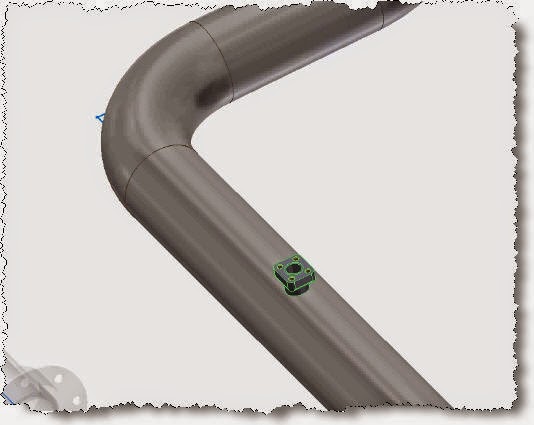
Branch fittings anyone? They are
a weird one I’ll tell you that, especially the authoring part for routed
systems.
I needed flow meter fitting
authored and ready to drop from the library so I downloaded the .sat part from
GF’s website and saved it in ipt format.
Before you go to authoring the
part you need to modify it a bit.
1. First you need to add a mating
point where the fitting connects with the pipe.
2. Then you need to create the
pipe axis. For this I have first created a sketch where I have drawn a circle
being the O.D. of the pipe and constrain it tangent with the mating point.
Then you can create an axis that
will go through the center of the circle perpendicular to the sketch plane.
3. We also need to create a
cutting profile if we want the pipe to be cut out by our fitting.
Use the pipe axis created above to
create a plane parallel with the top face of your fitting. Add a circle or
project the existing pipe ID edge as your cutting profile.
Now you can go to authoring tube
an pipe.
On the Type drop down list choose
“Branches” and set 2 the number of connections.
My fitting is a special size 1.26”
flanged fitting so first End Treatment is Flanged, of size 1.26in. Use the
upper circular edge for your Connection Point and Axis.
The second Connection is of type
Welded and because it’s a one size fitting I will have M150 in both Min, Max
Size.
Use the work point created for
the mating point and the work axis for the pipe axis. Finally select the circle
on the cut profile sketch and mark if to cut the mating pipe or not.
Click ok and turn the visibility
off for all work features and sketches. Here is the end result once you drop the fitting on top of the pipe.
I have managed to do a post every week (sometimes more than one) but haven't been able to make videos so I've decided to do one for this post.Here it is: