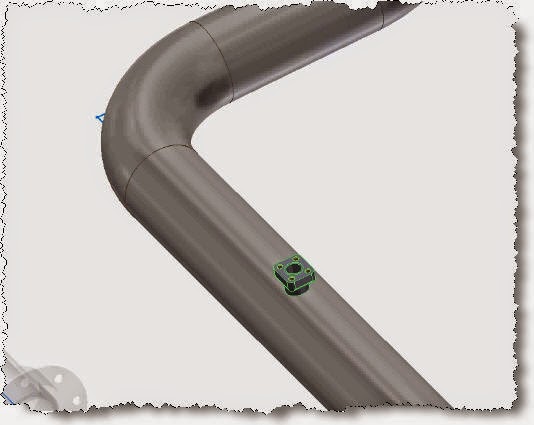
Deleting
fittings can be daunting and you can end up spending hours in rework. If ever
struggled with this then problem you will be happy to know there’s a trick or two to bypass this limitation (bug more likely).
 |
| All fittings CAN be deleted, just need to know how. |
Usually
as you select a fitting you will get Delete option on the right click menu but
every once in a while, just when you need it most and you are in a hurry,
rushing a deadline you find this missing option. You probably hope no one will
see a fitting floating around or as an advanced user you are, you turn the
visibility off for the component in the design view presentations or turn
the line visibility off in the drawing.
 |
| Missing Delete option on the right click menu. |
Not
to be finger pointing, but I had someone turning the color of the
lines white on the drawing in his need to hide/delete a fitting. This tricked
the drawing aspect but not the prints and exports.
You
will more likely see this bug when you copy/paste a fitting in the browser or graphical window. I tend to do this when I need a copy of an existing fitting with a
different size. For some reason the new fitting will lose part of the TP
functionality (icon on the browser will not be a blue tee icon specific of TP
fittings). At this point you cannot delete it unless you select it and then
press delete on your keyboard. There is no delete on the right click
contextual menu on the graphical window or browser
If using “Delete” on your keyboard is also
not working, the trick is to use demote, promote to a point where delete gets
active and you can use it.
Select
the fittings in the browser and drag them outside T&P assembly. Then step at
that level and notice that there still is a missing delete option on some/all
of the fittings. Select them again and use demote on the right click contextual
menu (under Components) or press “TAB” on your keyboard.
 |
| Drag / promote fittings. |
Don’t worry about giving a proper name and a
save location for the new assembly. We will never save it but instead, as soon
as the fittings are grouped under this new file select it and press Delete key or
use the right click contextual menu.
 |
| Still missing Delete? Demote them... |
 |
| How's this working then? |
In the next post will be covering broken links for fittings that don’t update with the route and for some reason they remain in the assembly. While the fix is similar there is a catch on how to get that route to populate again and save recreating the route.
 |
| Delete key worked but here's promote/demote. |
Later,
ADS.