Showing posts with label note. Show all posts

Monday, 16 November 2015

Placing Symbols

Old habits die hard and it’s a constant fight to change them. For all my life when I place a note or symbol I right click and choose continue while I could double click to finish placement.


Start the Leader Note, Insert Symbol, or any other item on the Symbol panel of the Annotate tab, click on the element to detail then move the mouse out and then double click to place it.


I’ve mentioned before that I left the engineering office for about 4 years and changed to inspecting and installing equipment and starting up a couple of plants and while that was really rewarding and helped improved my knowledge I have fallen behind on all things CAD. When I came back to Inventor, Autocad and designing in general I was struggling to find the commands and the menus again but my mind had a mind of its own. After a week or so I found that my hand knew the shortcuts and started commands before I could tell what was going on and before I could realize what the shortcut for that command was. This goes to prove how hard it is to change my habits especially if in a hurry and I switch to auto-pilot letting my mind’s mind work out the details of what to click, where and for how many times.

To further help this habit installed if I find myself placing a note or symbol by using the Right-Click Continue option, which is an automatism by now, I delete it and recreate it with double click. I feel that doing the extra work of recreating the steps to be annoying enough to force my brain to switch tactics and update the habit.

Of course, unlike the right-click continue option which can be used all the time without exception, the double click is tricky and need special consideration in things like Surface Texture where you need to move the mouse out to specify the direction of the symbol and then come back and double click on the original point.

I don’t think this alone will improve speed and get your drawings out faster but changing a lot of these small things can have a good impact so try them out.

Later,
ADS


photo credit: Continue via photopin (license)

Tuesday, 27 October 2015

Leader Text

I am having a déjà-vu and I bet you’re having it too. We just talked about hiding leaders on symbols, putting mask on texts and now we are discussing leader notes? What more can there be?


You all probably know about leader text and you use it already but did you know that you can have text on leader and it’s not just a play of words? If you didn’t know, keep on reading and if you did congrats because you can tick one more box on your Inventor Expert checklist.
Any element that has a leader like, balloons, texts, welding symbols, surface roughness, custom symbols, datum identifier, etc., allows you enter custom text on its leader.  This will only be available on the first part of the leader, not any of the landing segments or its vertexes.
                Once you’ve placed your symbol you can right click on the leader and on the contextual menu choose “Attach Text to Leader...”.  This will bring in the text dialog box where you can enter your text or even use part parameters or iproperties.
                Let’s look at some examples (and please don’t tell me the text doesn’t make sense; they are just examples ;).
               
Leader Text


Datum Identifier


Welding Note


Surface Roughness


Balloons


Custom Symbol


Here’s a short animation in case you are too bored to read it all.


I hope you will use this trick if you aren't already and see you all next time.


Later,

ADS

Friday, 23 October 2015

Text Mask


            This will continue exploring our drawing symbols and notes in Autodesk Inventor. Last post we discussed how to hide the leader but maintain attachment link and position.
            If you use AutoCAD a lot you might wonder if there is a way to create text masks in Inventor. Sadly there isn’t but there are other ways to hide objects behind your symbol or note.

            Out of the box but turned off we have the Cross Hatch Clipping option that will trim the hatches with a box around your texts, like on dimensions, notes, or symbols.
            To turn this on, which I do because it looks better and makes the text legible, you need to open Document Settings on the Tools tab, Options panel of the drawing. In the document settings window head over to the Drawing tab and tick the box on Cross Hatch Clipping.


            Once that is on and you have text overlapping hatched areas you should see the hatch being trimmed by a rectangular box around your text.
            On the left Cross Hatch Clipping is off and on the right is on. It does look better doesn’t it?


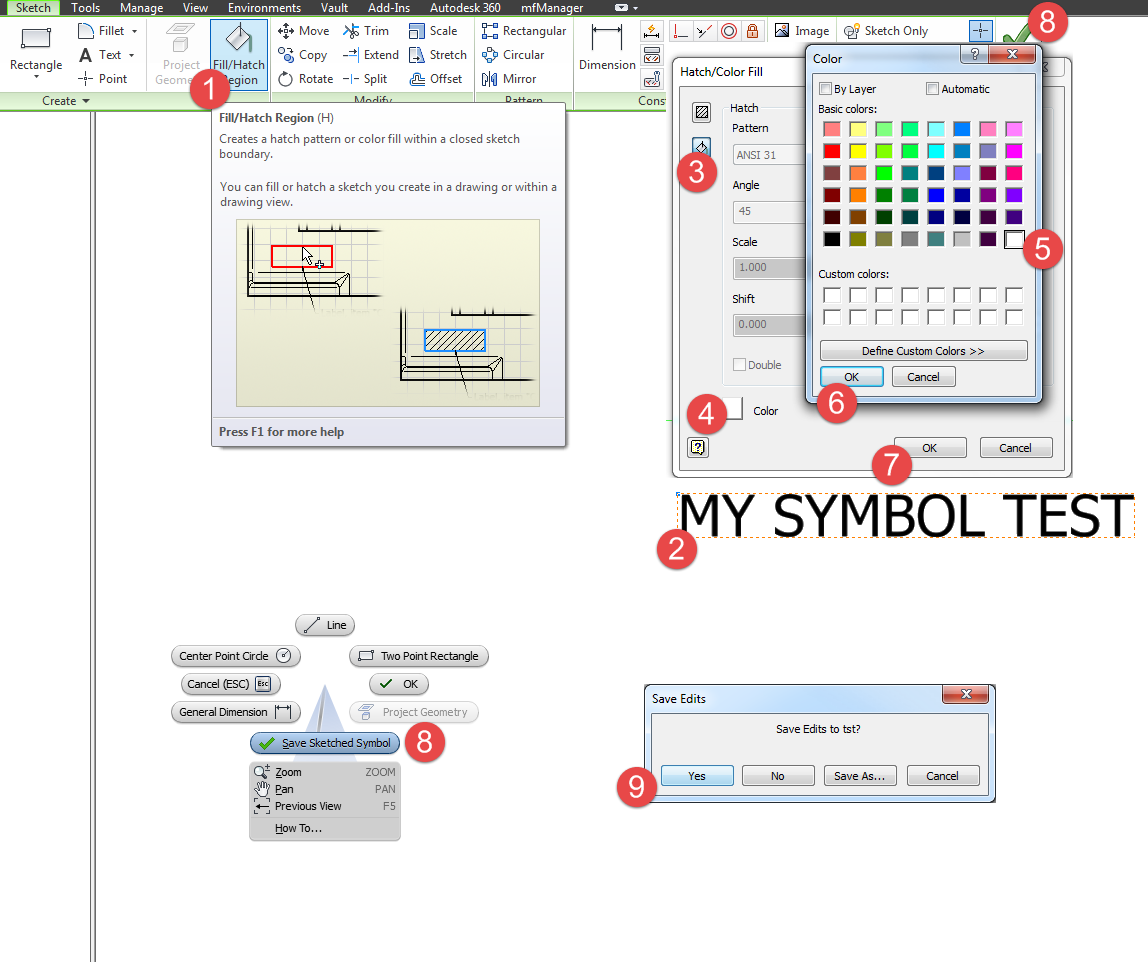
            Just like in Autocad I want/need to create mask on text and it’s not possible out of the box in the edit text dialog window but that’s where we become creative. You need to turn your text into a symbol because that will put you in the sketch environment where we can use the hatch/fill to put a solid color behind our objects and so in the drawing they will hide objects behind them just like a mask in Autocad.
            TIP: You need to create them a symbols and not by activating sketch or draft view because you can attach it with a hidden leader and they can more easily be copied around on other sheets or drawings.
            On the drawing browser right click the Sketched Symbols folder in the Drawing Resources node and choose Define New Symbol. Then create your text but make sure you turn the Text Box option on.


            At this point the text dotted line cannot be used for filling/hatching but you can either draw a rectangle on top of the text border or what I like to do is use the offset command and put another border around my text. On the Sketch tab choose Fill/Hatch Region and click select your profile, and then select Color Fill option and click the Color button on the bottom. Choose your color, click OK to exit the fill/hatch dialog and then save your symbol.


            This method is not perfect and there’s missing functionality here but once you used the fill command to put a mask in the symbol you can also edit the Symbol (not Edit Definition) and choose Symbol Clipping. This will remove extension lines behind the symbol like from dimensions and other leader texts.
On the left you have Symbol Clipping on and in the right of.


            Although it’s slightly better, still not perfect because centerlines and other cosmetic entities (drawing items) will show on top. We do need a Send to Back, Bring to Front, Bring on Top and Text Mask like in Autocad. I would still check the export to dxf and pdf to see what the results are in terms of top layer priority.


 Give it a try and let me know how that goes.

Unfortunately in 2016 the fill/hatch will not hide objects behind it but we are waiting for the fixes.


Later,
ADS

photo credit: Star Wars Weekends 2011-Last Day via photopin (license)

Thursday, 14 August 2014

Component Tags in Inventor

As you are aware if you have done any routed systems there is no way of labeling same valve (or components for that matter) with different names / tags / id_numbers and call it on the drawing. You can create leader notes in the drawing but if they need changing you need to manually do it and it’s time consuming if you have large assemblies and multiple sheets and views. I have seen the same problem for people doing assemblies of electric components.
A 2” ball valve can have different identification tags in the P&ID but be a reused library component in Inventor.

I've been searching for a solution to this problem for the last 8 years or so and I couldn't find anything on autodesk forums or other discussion groups.
I instinctively knew that we would need to use the assembly browser name (occurrence name) but didn't see how to get it to show up in the drawing.

I have got together bits of iLogic codes from the internet that can get the assembly occurrence name and link it to the override value of my custom style balloons.
For this I have created a new balloon style called “Tags” and made it of type “Hexagon” with just the “Item” info in it.

The code processes just balloons of style “Tags” for we don’t want to change parts list balloons as well.
Because changing the occurrence name in the assembly involves a lot of steps (find component in browser / edit parent subassembly / change name of component / activate top level again) it is better to do it from the drawing.
You need to use “balloon” command, because “auto-balloon” cannot label same component on different views more than once.

Place balloons as you would normally do using “balloon” command and override the field with your text. You only need to do it once per component then run the code

When running the code it will prompt you if you want to set names from the balloons or from the browser. Choose balloon to send the override value to the model browser (occurrence name).

Continue placing balloons on all views and then run the code again. Choose to set the value from the browser to get the value on all new balloons.

This way I can balloon same component multiple times on same view if wanted.

As you can see the Occurrence name in browser and iproperties changed but the part number, stock number and other properties didn't changed.


Here's the code with explanatory comments:

' Set a reference to the drawing document.
' This assumes a drawing document is active.
Dim oDrawDoc As DrawingDocument
oDrawDoc = ThisApplication.ActiveDocument

' Set Reference to Active Sheet
Dim oSheet As Sheet
oSheet = oDrawDoc.ActiveSheet

'get the name and path of the first model in the drawing
oAsmName = ThisDrawing.ModelDocument.FullFileName

' Set Reference to the Assembly and Open Silently
Dim oAsmDoc As AssemblyDocument
oAsmDoc = ThisApplication.Documents.Open(oAsmName, False)

' Set a reference to the assembly component definintion.
Dim oAsmCompDef As AssemblyComponentDefinition
oAsmCompDef = oAsmDoc.ComponentDefinition

Dim oBalloon As Balloon

'Ask the user if he wants to set the component name from browser
'or if he wants to set the browser name from overwritten balloon value
booleanParam = InputRadioBox("Set name from?: ", "Browser", "Balloon", True, Title :="Read/Write")


'Start a counter for sheets to process
Dim SheetCount As Long
SheetCount = 1
Dim oSheets As Sheet
'step through each drawing sheet
For Each oSheets In oDrawDoc.Sheets

    ' Iterate over each balloon on the sheet.
    For Each oBalloon In oSheet.Balloons
        Dim leader As Leader
        Leader = oBalloon.Leader
        'assuming the leader is a single line segment
        Dim leaderNode As LeaderNode = leader.AllNodes(2)
       
        Dim intent As GeometryIntent
        intent = leaderNode.AttachedEntity
   
        Dim curve As DrawingCurve
        curve = intent.Geometry
   
        Dim edgePx As EdgeProxy
        edgePx= curve.ModelGeometry
   
        Dim occurrencedrg As ComponentOccurrence
        occurrencedrg = edgePx.ContainingOccurrence
        
        Dim oBalloonValueSet As BalloonValueSet
       
        ' Iterate over each value set (attached balloons) in a balloon.
        For Each oBalloonValueSet In oBalloon.BalloonValueSets
            'only process if balloon of style of type "Tags"
            If oBalloon.Style.Name = "Tags" Then
                'if user wants to get name from browser
                If booleanParam = True Then
                    ' Set balloon value from browser.
                    oBalloonValueSet.OverrideValue = occurrencedrg.Name
                'if user wants to set browser name from balloon
                ElseIf booleanParam = False Then
                    ' Set browser name from balloon override value.
                    occurrencedrg.Name = oBalloonValueSet.OverrideValue
                End If
            End If
        Next
    Next
'Increase sheet counter
    SheetCount = SheetCount +1
Next


Best of  luck

ADS.