Showing posts with label visual basic. Show all posts

Thursday, 4 June 2015

Drawing curves to match model


HOW TO SET DRAWING LINE COLORS AS MODEL APPEARANCE?

I wasn’t sure if to post this at all because it didn’t seem to provide any good and positive solution. If at all I would have post it under “food for thought" or under “let’s see if we can find a better solution”. By “we” I mean one of you showing me how to properly do it.
But just the other day this showed up as a question on the forum and seeing that none came with a better-closer solution I decided to share it as a full blog. It doesn’t mean that you cannot correct me, in fact I am hoping one of you will do.

After posting my answer  the guys on the forum went quiet so I take it that either my info was more than they expected (yeah right!) or I am so far out that they are embarrassed to tell me. I think it’s the later, I’ve been there more than dozen times.
Before I continue here is the forum post.
             
Following text is an expanded adaptation of the answer provided there.

I've been playing with this on my last project. Because it was a large assembly and the pipes in the drawing ended up looking like steaming spaghetti I decided to show each run with a different colour matching the appearance set in the model.
I did a brief scan on the net to see what others have done and I got excited, almost making me think it was done before. So it was, just not the way I needed because the solutions were getting the colour of the part and I needed the colour of the run that is an assembly and the solutions are processing the curves ONE AT A TIME which it’s like watching a painting being done in real time…… a really large one…..with a small brush.
There are not many options here but if it’s a small assembly or just a part that you need processing then presto get the VB or iLogic codes bellow and get them running.
Just like my solution these need a manual update. Now, imagine that I had to add and remove views, sheets, sections, change appearances, change design views, etc. How many paintings can you watch being done in a day? That’s why I have a camera, a fast point and shoot type as well!

First solution: 
Brian Ekins has aVB code but it's processing all lines (curves) one at time and that takes forever. It creates layers with each colour but unfortunately the layers are called as the RBG code of the colour (very hard to identify and edit)

Another solutionon the mCAD forum:

Third solution was on the Inventor forum:

In my case these didn't work because I had a large assembly. This is just one sheet out of six and quite a simple one.


You can change your selection to part filter select your component (or select it in the browser) and then right click properties to change it's colour (override).

This is a partial solution because it's hard to select parts and manually update them all the time (as the assembly changes). But it’s a fast one, almost instant and it changes all line type (hidden, visible, tangent, etc.)

Because I only had visible and tangent lines (small to an ignore number) I decided to setup layers to which I would assign my runs.

So I end up creating copies of Visible layer calling them Run1, Run2, etc. and changed the colour of each one as per the assembly (manual unfortunately).Then right click on a part (or assembly in my case) in the browser, choose "select as edges" and then in the Annotate tab, Format, Layer, choose the layer you previously created.


Hey that’s pretty cool! Or not, because you need to do it for each sheet. You can expand the views in the browser and select a model (my run) in all the views before using select as edges but still to many manual operations. At least once done you can just change the colour of the layer and all sheets update.

Side Note:
Haven't tested but this seems to affect performance and increase the drawing file size. My drawing now has around 50 MB.

So now what?
Will try and put a nice ilogic together to process your browser selection to change its colour from the model on all sheets as per the appearance of your selected object.
This should not process the drawing curve-by-curve. We only have one life. It needs to get the collection of curves and change properties (override) all at the same time. Somehow that’s what using the properties on a model or using the select as edges does. Surely it can be done with iLogic or VB.

Great stuff! When can we have the code?

As soon as I have it, but the way things are going with work overload and no extra time … I might never get to do it.

Later,
ADS.

Thursday, 7 May 2015

Custom Table on Drawing

No time for a regular post or a video but I’ve got a small ilogic code to share on how to create and edit custom tables on drawings.
I am doing half a dozen tanks a week and each need to have a couple of tables with nozzle connection and tank specifications.
The tank is done as ilogic component that I clone along with the drawing each time a new one is needed.
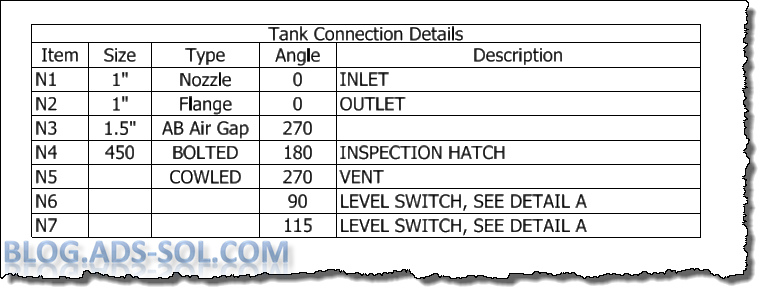
The nozzle connection table looks like this:


And the Operating Conditions table:


                All the info comes from the model and if they are not present then we prompt the user for the values to fill in.
                It is better if you place and position the table before running the code otherwise it will show up somewhere in the lower left corner, (you can always move it of course). If you do place the table first even if it doesn't have the correct info the code will find it and will edit it.
                I am using table name as my search criteria when going through all the custom tables on the drawing.  The limitation would be having two custom tables with same name because it stops at the first one so, although obvious, make sure you have different names for each of your table; can’t call them all “table”.

        TableCheck:
'------------------------------------------------------
'---------------start finding the table----------------
'------------------------------------------------------
For i = 1 To oSheet.CustomTables.Count
    TableTitle = oSheet.CustomTables.Item(i).Title                       
    If TableTitle = "Operating Conditions" Then
        'Remember the table number for editing section
        TableNr = i
        'If table found jump to edit section
        Goto EditTable
    End If
Next
'------------------------------------------------------
'---------------end finding the table----------------
'------------------------------------------------------
               
If the table is not found then we are creating it and then we run the TableCheck again in order to find the table number to edit.

'CreateTable:
'------------------------------------------------------
'---------------start creating the table---------------
'------------------------------------------------------
' Set the column titles
oTitles = New String(){"Item", "Description"}
'
'
'
' Create the custom table
oCustomTable = oSheet.CustomTables.Add("Operating Conditions", ThisApplication.TransientGeometry.CreatePoint2d(15, 15), _
                                    2, 11, oTitles,oContents, oColumnWidths)
'------------------------------------------------------
'---------------finish creating the table---------------
'------------------------------------------------------
'edit the table by restarting the check routine
Goto TableCheck
       
This is where we edit the table, and we check if the model has the info we need and if not then we prompt the user for that. When we prompt we show the user the current value but allow him to change it if he wants:

EditTable:
'------------------------------------------------------
'---------------start editing the table---------------
'------------------------------------------------------
'Get the name Of the first model in the drawing
modelName = IO.Path.GetFileName(ThisDrawing.ModelDocument.FullFileName)
'MessageBox.Show(modelName, "ilogic")
'
'
'
'
'------------------------------------------------------
'---------------finish editing the table---------------
'------------------------------------------------------

It’s pretty much the same for the Tank Connection Details so I won’t post that but the code for this one is down bellow for all those search engines and linked here for you to download.

Later,

ADS.


' Set a reference to the drawing document.
' This assumes a drawing document is active.
Dim oDrawDoc As DrawingDocument
oDrawDoc = ThisApplication.ActiveDocument

' Set a reference to the active sheet.
Dim oSheet As Sheet
oSheet = oDrawDoc.ActiveSheet

'Declare my custom table
Dim oCustomTable As CustomTable


TableCheck:
'------------------------------------------------------
'---------------start finding the table----------------
'------------------------------------------------------
For i = 1 To oSheet.CustomTables.Count
    TableTitle = oSheet.CustomTables.Item(i).Title                       
    If TableTitle = "Operating Conditions" Then
        TableNr = i
        'If table found jumpt to edit section
        Goto EditTable
    End If
Next

'if not found go create it
Goto CreateTable
'------------------------------------------------------
'---------------end finding the table----------------
'------------------------------------------------------


CreateTable:
'------------------------------------------------------
'---------------start creating the table---------------
'------------------------------------------------------
' Set the column titles
oTitles = New String(){"Item", "Description"}
' You can ask user for the name of the columns if you want
'Dim oTitles(1 To 2) As String
'oTitles(1) = "Item"
'oTitles(2) = InputBox("What to prompt", "iLogic", "Default value")

' Set the contents of the custom table (contents are set row-wise)
'more than one way to skin a cat
'Dim oContents(1 To 22) As String
oContents = New String(0 To 21){}

oContents(0) = "Contents"
oContents(1) = "" 'oMedia
oContents(2) = "Working Capacity (EST)"
oContents(3) = "" 'oCapEST
oContents(4) = "Dry Weight"
oContents(5) = "" 'oDryWgt
oContents(6) = "Maximum Working Weight"
oContents(7) = "" 'oMaxWgt
oContents(8) = "Specific Gravity"
oContents(9) = "" 'oSpecGrav
oContents(10) = "Max. Working Temperature"
oContents(11) = "5 Degrees C"
oContents(12) = "Max.Working Pressure"
oContents(13) = "Atmospheric"
oContents(14) = "Materials of Construction"
oContents(15) = "" 'oMaterial
oContents(16) = "Location"
oContents(17) = "Plantroom"
oContents(18) = "Tolerances"
oContents(19) = ""
oContents(20) = "Angular"
oContents(21) = "+/- 0.5 Degrees"


' Set the column widths (defaults to the column title width if not specified)
Dim oColumnWidths(0 To 1) As Double
oColumnWidths(0) = 7.5
oColumnWidths(1) = 6
 
' Create the custom table
oCustomTable = oSheet.CustomTables.Add("Operating Conditions ADS", ThisApplication.TransientGeometry.CreatePoint2d(15, 15), _
                                    2, 11, oTitles,oContents, oColumnWidths)
'------------------------------------------------------
'---------------finish creating the table---------------
'------------------------------------------------------
'edit the table by restarting the check routine
Goto TableCheck


EditTable:
'------------------------------------------------------
'---------------start editing the table---------------
'------------------------------------------------------
'Get the name Of the first model in the drawing
modelName = IO.Path.GetFileName(ThisDrawing.ModelDocument.FullFileName)
'MessageBox.Show(modelName, "ilogic")
   
'declare the table to edit by the number found in check
oCustomTable = oSheet.CustomTables.Item(TableNr)

'Type of Media
Dim oMedia As String
'set the cell to edit, you can add numbers or name
'first cell to edit
oCell1= oCustomTable.Rows.Item(1).Item("Description")
'try and get it from the model
Try
    oMedia = Parameter(modelName, "MediaType")
'if not found, prompt user for it
Catch
    oMedia = InputBox("Contents", "iLogic", oCell1.Value)
End Try
'add media to table
oCell1.Value = oMedia

'Capacity
Dim oCapEst As String
'second cell we're editing
oCell2= oCustomTable.Rows.Item(2).Item("Description")
'try and get it from the model
Try
    oCapEst = Parameter(modelName, "CapEst") & " Litres"
'if not found, prompt user for it
Catch

    oCapEST = InputBox("Working Capcity (EST)", "iLogic", oCell2.Value)
End Try
'add Capacity to table
oCell2.Value = oCapEST

'Dry Weight
Dim oDryWgt As String
'3rd cell we're editing
oCell3 = oCustomTable.Rows.Item(3).Item("Description")
'try and get it from the model
Try
    oDryWgt = Parameter(modelName, "DryWgt") & " Kg"
'if not found, prompt user for it
Catch

    oDryWgt = InputBox("Dry Weight", "iLogic", oCell3.Value)
End Try
'add Weight to table
oCell3.Value = oDryWgt

'Total Weight
Dim oMaxWgt As String
'4th cell we're editing
oCell4= oCustomTable.Rows.Item(4).Item("Description")
'try and get it from the model
Try
    oMaxWgt = Parameter(modelName, "MaxWgt") & " Kg"
'if not found, prompt user for it
Catch

    oMaxWgt = InputBox("Max Working Weight", "iLogic", oCell4.Value)
End Try
'add total weight to table
oCell4.Value = oMaxWgt

'Specific Gravity of Media
Dim oSpecGrav As String
'5th cell to edit
oCell5= oCustomTable.Rows.Item(5).Item("Description")
'try and get it from the model
Try
    oSpecGrav = Parameter(modelName, "SpecGrav")
'if not found, prompt user for it
Catch
    oSpecGrav = InputBox("Specific Gravity", "iLogic", oCell5.Value)
End Try
'add Specific Gravity to table
oCell5.Value = oSpecGrav

'Material
Dim oMaterial As String
'6th cell to edit
oCell6= oCustomTable.Rows.Item(8).Item("Description")
'try and get it from the model
Try
    oMaterial = Parameter(modelName, "MaterialType")
'if not found, prompt user for it
Catch
    oMaterial = InputBox("Material", "iLogic", oCell6.Value)
End Try
'add material to table
oCell6.Value = oMaterial
'------------------------------------------------------
'---------------finish editing the table---------------
'------------------------------------------------------


EndRule: